Buying guide
PS5 or Xbox not showing 120Hz? Check your setup
Work through the game, console settings, HDMI cable and screen input when 120Hz is missing on PS5 or Xbox. Includes a simple connection checklist.
If your console will not offer 120Hz, check the complete connection at the resolution you want. The console, game, cable, display input and any equipment between them all matter.
A monitor advertised as 144Hz or a TV with a gaming mode does not, by itself, answer whether your particular HDMI connection accepts 120Hz.
The quickest useful test is usually a direct connection from the console to the correct display input, using a suitable cable and a game with a documented 120fps mode. Once that works, add the other equipment back one item at a time.
If 120Hz disappears when you reconnect an HDMI switch or receiver, you know where to start looking.
Use the gaming display compatibility checker to organise the console and display requirements.
Keep the exact model numbers handy, including the screen size of a television, because specifications can differ within a product family.
First separate 120Hz from 120fps
Hertz describes how often the display signal refreshes each second. Frames per second describes how many frames the game renders.
A 120Hz connection allows a suitable game to send frames at a higher rate than a 60Hz connection, but it does not make every game render at 120fps.
A game may offer a high-frame-rate mode with different visual settings, or it may not offer that mode on your console. Check the developer's information for the exact game version.
The presence of a 120Hz setting elsewhere in the console does not add a mode the game lacks.
Check the input reading while the game is running. The console home screen may use a different refresh rate. A display's information panel might show one signal while you browse the dashboard and another after a supported game starts.
Take your final reading in the relevant game mode, rather than judging the entire setup from the home screen.
| What you observe | What it tells you | What it does not establish |
|---|---|---|
| Console offers 120Hz | It has detected a supported output combination | Every game runs at 120fps |
| Display reports a 120Hz input | The current link is carrying that refresh rate | The game maintains 120 distinct frames every second |
| Game offers a 120fps mode | That game has a relevant setting | The whole HDMI route is configured correctly |
| Screen is advertised as 144Hz | It has a high-refresh capability in some configuration | It accepts the console's 120Hz HDMI timing |
Write down the target combination
Choose a specific target such as 1920 × 1080 at 120Hz, 2560 × 1440 at 120Hz or 3840 × 2160 at 120Hz. “High refresh” is too vague to diagnose. A display may accept one of those combinations and not another.
Record whether HDR and variable refresh rate are part of your intended setup. Initially, focus on obtaining a stable picture at the desired resolution and refresh rate. Then check the additional features.
Changing everything at once makes it difficult to understand why a mode appears or disappears.
Note the console model and the game edition as well. Instructions for one console generation or a different version of the game may not describe yours.
Check for console, display and game updates using their normal update processes before investigating an unexplained mismatch with current documentation.
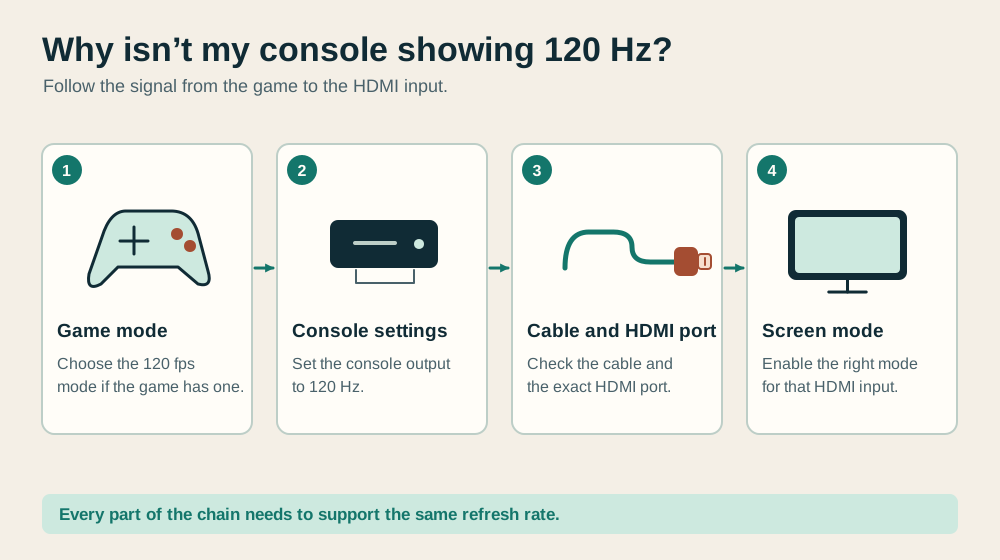
Check the display's HDMI input table
Find the manual's supported input timings or console compatibility information. Look for the target resolution and 120Hz specifically under HDMI. A monitor's highest advertised refresh rate may apply through DisplayPort or to another resolution.
Check which socket supports the mode. Televisions can have HDMI inputs with different capabilities, and some require a particular input setting to enable the intended signal format.
The socket marked for audio return is not automatically the only high-bandwidth input, or necessarily the best one for every arrangement.
ViewSonic publishes console setup instructions and a model compatibility list that distinguishes supported 120Hz modes. That model-level approach is more useful than assuming a high-refresh badge establishes compatibility.
Use your own display manufacturer's equivalent documentation. ViewSonic console output guidance.
If the manual lists 1080p at 120Hz but not 1440p at 120Hz, test the documented mode first. Successfully running 1080p can confirm that part of the setup works while leaving the higher-resolution question open.
Do not turn an unsupported input combination into a cable-shopping exercise.
Simplify the connection before changing more settings
Connect the console directly to the intended display input. Temporarily remove HDMI switches, receivers, soundbars with video pass-through, capture devices, adapters and extension joints from the video route.
Follow the equipment's instructions when disconnecting and reconnecting it.
This is a diagnostic arrangement, so it does not need to be the final room layout. Its purpose is to establish whether the console and screen can communicate at the target mode with fewer variables.
Keep a note of the original cable route so you can restore it sensibly afterwards.
Use the console's supplied cable where appropriate for the target, or a cable with documented support for the required connection. For a 4K120 setup, a certified Ultra High Speed HDMI cable provides a clear specification to check.
HDMI's official certification programme identifies these cables and their certification labels. HDMI cable certification information.
Do not replace several cables at once if you are trying to identify a fault. Change one part, repeat the same test and record the result. An expensive cable cannot make an unsupported display input accept a new mode.
Check PS5 output and the game separately
On PS5, open the video-output settings under Screen and Video. Inspect the current output signal and the connected HDMI device information, then enable the 120Hz output option for supported displays and games.
If you are using 1440p, the console also provides an output test for supported combinations. Sony documents these controls in its PS5 resolution and output guide.
After that, check the game's own instructions. Some titles require a performance preference or a separate high-frame-rate option.
Make sure you are launching the intended edition of the game, and restart it if the developer's instructions require that after changing the console settings.
For example, Epic's Fortnite instructions describe selecting the PS5 performance preference and then enabling the game's 120fps video option. This illustrates the two separate layers: console configuration and game configuration.
Other games can use different names or offer different choices. Epic's Fortnite 120fps instructions.
Once gameplay is running, check the display's signal information again. Record the resolution and refresh rate together, because a working high-frame-rate mode may involve a different output or rendering choice from the quality mode you used previously.
Check Xbox output and the game separately
On Xbox Series X or Series S, the display controls are under General in TV and display options. Inspect the detected display capabilities, choose an appropriate resolution and select 120Hz where supported. Then check the game's own video settings.
Epic's Xbox instructions for Fortnite follow exactly that two-stage pattern: configure the console's refresh rate, then enable the 120fps option inside the game.
Use the developer's current instructions for your title rather than assuming that switching the Xbox setting changes every game automatically. Fortnite console configuration guidance.
If 120Hz is unavailable at the selected resolution, compare that combination with the display's HDMI timing table. Try a lower resolution that the manual explicitly supports at 120Hz.
This is useful for identifying the limit, even if the final goal remains 4K120.
Keep the result precise. “1080p120 works through HDMI 2” is much more helpful than “the monitor works now”. It tells you what is established and makes a later support conversation easier if the documented higher-resolution mode still fails.
A small test log prevents you circling back to the same combinations. Give each attempt a row containing the resolution, refresh rate, display input, cable route and result. Record a failed attempt as well as a successful one.
If you change the display's input format, note that change before trying another cable.
After a few checks, the pattern is often clearer than it felt while moving between menus: one socket works, one intermediate device removes the option, or only the higher-resolution combination fails.
Add HDR and variable refresh rate deliberately
HDR, variable refresh rate and automatic low-latency switching are separate features. VRR changes refresh timing to suit supported content; a low-latency mode changes the display's processing behaviour. Neither is simply another name for 120fps.
Sony describes these separately in its PS5 output documentation.
Once the basic target mode works, enable the additional features you want and repeat the same game test. If a problem appears after one change, check whether the display supports that exact combination and whether its manual specifies another input mode.
Avoid keeping a troubleshooting adjustment without understanding its consequence. Sony notes that the PS5's reduced video transfer-rate settings can limit 4K120 output.
A setting that helps with flicker may therefore also change the mode you were trying to achieve. Sony transfer-rate settings.
You do not need to enable every feature to have a useful setup. Decide which combination serves the game and remains stable on the equipment you own, then save those settings in your notes.
Three common situations and what to test next
Consider a fictional 144Hz monitor that accepts 1080p120 over HDMI but reserves its highest mode for another input. The console is currently set to 1440p.
Checking the manual reveals the mismatch, and selecting the documented 1080p120 mode provides a useful working option. Replacing the cable would not add a missing input timing.
In a second example, a console and television work at 4K120 when connected directly, but drop to 4K60 through an older receiver. The direct test has already established a working console-to-TV route.
The next checks are the receiver's supported pass-through mode, its chosen inputs and both cables. A different audio arrangement may be preferable to replacing the television.
In a third example, the display reports 120Hz but a game still looks similar to its usual quality mode. The player checks the developer's instructions and finds a separate performance option.
Here the signal was already working; the remaining question was the game's configuration and supported behaviour.
These are illustrative troubleshooting cases, not tests of named products. Their shared lesson is to ask what each observation proves before deciding what to buy or change.
Reintroduce switches, soundbars and capture devices
Start from the direct connection that worked. Add one intermediate device with its required cables and repeat the identical resolution, refresh-rate and game test.
If the target mode disappears, investigate that new part of the route before adding anything else.
For a receiver or soundbar, read the video pass-through specification rather than only its audio capabilities. For a capture device, distinguish the signal it can pass to the screen from the signal it can record. Those can be different limits.
Keep the final route simple enough to understand. Label the relevant sockets and cables if several people use the room.
The shared living room console setup guide covers storing and reconnecting equipment without making everyday use awkward.
If streaming introduces the issue, the starter streaming setup guide helps plan the wider arrangement.
Establish the local gaming picture first so that recording problems do not become confused with display problems.
What to send support if it still fails
Provide the console model, display's full model and screen size, software versions, target resolution and refresh rate, HDMI input number and cable details. Include the game and its selected mode. Describe whether the test used a direct connection.
Add two or three observations from your checks: which documented modes work, which one fails, and what changes when an intermediate device is removed.
A photograph of the display's signal-information panel can help, provided it does not reveal account or other personal details.
Ask a focused question such as whether that input accepts the target mode from your console with the selected HDR or VRR setting.
This gives support a concrete combination to confirm and reduces the chance of receiving general instructions you have already tried.
If the maker confirms your screen can't accept the mode you want, the gaming monitor buying guide can help you compare replacements.
Use the exact resolution and refresh rate you wrote down to check each candidate's input table.
Do I need a new HDMI cable for every 120Hz setup?
No. The required connection depends on resolution and other signal settings as well as refresh rate. Check the target mode and the existing cable's specification. A documented 1080p120 setup is a different demand from 4K120 with additional features.
Test the supplied or otherwise suitable cable before buying replacements.
Why does a 120Hz TV still show 60Hz?
The current source may be sending 60Hz, the game may be in a different mode, or the connection may be limited by an input, setting or intermediate device. Read the current signal during supported gameplay, then work through the route.
The panel's capability and the incoming signal are separate facts.
What counts as a successful result?
Open the game in its supported mode, check the display reports the resolution and refresh rate you expected, then play long enough to see whether the picture stays stable through your usual equipment. Save that working configuration.
If you later add a switch or change a cable route, you will have a clear baseline to compare against.
Keep exploring
Related gaming setup guides
 Shared living-room console setup: connections and quick changeoverPlan console ventilation, display compatibility, seating, audio and controller storage around ordinary shared-room use.
 55 vs 65 vs 75-inch TVs: what fits your room?Compare the width, picture area and viewing distance of 55, 65 and 75-inch TVs, with room examples and a free TV size calculator.Gaming headset, keyboard and mouse: compatibility and fitChoose starter peripherals by platform connections, microphone behaviour, keyboard footprint, mouse space and realistic comfort checks.