Buying guide
34-inch ultrawide vs two 27-inch monitors for work
Compare usable pixels, window layouts, screen sharing and connections before choosing a 34-inch ultrawide or two 27-inch monitors.
Choose a 34-inch ultrawide if you want one continuous screen with your main window in the centre. Two 27-inch monitors may suit you better if you often use separate full-screen apps, present on one screen or want a portrait display.
Start with the windows you use together on a normal working day, then compare how each arrangement would hold them.
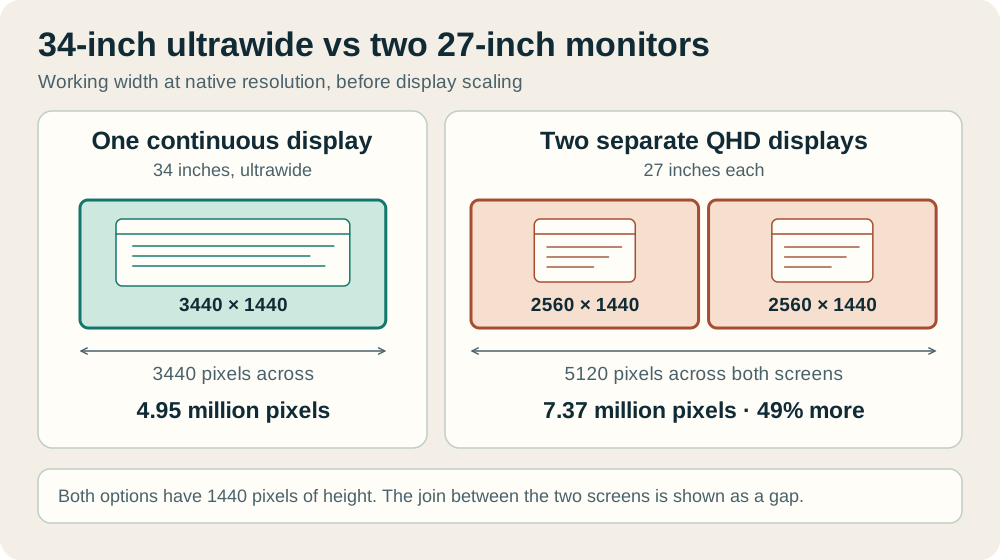
The comparison below uses a 34-inch ultrawide at 3440 × 1440 and two 27-inch screens at 2560 × 1440 each. If you're looking at a 34-inch 2560 × 1080 monitor or a pair of 27-inch 4K monitors, do the sums again with those figures.
The screen sizes might sound similar, but the space available for your windows can be quite different. The examples show how that could affect your work.
How much working space do you get?
For the specific resolutions above, one ultrawide provides 3440 × 1440 = 4,953,600 pixels. Two QHD displays provide 2 × 2560 × 1440 = 7,372,800 pixels.
The pair has approximately 49% more total pixels, with a combined horizontal canvas of 5120 pixels when arranged side by side. Both arrangements have 1440 pixels of vertical resolution before scaling and application controls.
An ultrawide is therefore not equivalent to two complete QHD screens squeezed into one panel. Dividing a 3440-pixel-wide display equally produces two 1720-pixel-wide regions. Each individual QHD display is 2560 pixels wide.
That difference matters if your application needs a wide navigation panel, a substantial spreadsheet and a reference document simultaneously.
| Arrangement, at the stated native resolutions | Total pixels | Width available to each of two equal working regions | Main trade-off |
|---|---|---|---|
| One 3440 × 1440 ultrawide | 4.95 million | 1720 pixels | Continuous image, less total horizontal workspace |
| Two 2560 × 1440 displays | 7.37 million | 2560 pixels | More workspace, physical join between panels |
These sums tell you how much pixel space is available. To work out how many documents you'll comfortably see, also allow for display scaling, browser zoom and sidebars.
Try your usual text size at your normal seated position: extra pixels aren't much use if you have to shrink everything beyond what you can read easily.
Physical height is closer than the diagonal suggests
Using nominal diagonals and the stated pixel proportions, a flat 34-inch 3440 × 1440 active panel calculates to roughly 79.7cm wide and 33.3cm high. A flat 27-inch 16:9 active panel is approximately 59.8cm wide and 33.6cm high.
Those calculations explain why this particular ultrawide feels like a wider version of a 27-inch QHD screen rather than a dramatically taller display.
Two straight 27-inch active panels span around 119.5cm before housings or gaps. The calculated ultrawide active area occupies about 40cm less horizontal space.
Curvature changes the straight-line footprint of a real product, and the manufacturer's housing dimensions are the correct figures for furniture planning. Stand depth and mount movement remain separate measurements.
Use the 34-inch ultrawide desk-size guide for physical planning, or the two 27-inch monitor desk guide for a pair.
Those decisions should follow your workflow choice: fitting a smaller arrangement into the room does not make it an equivalent working canvas.
Try your busiest everyday task
Write down the applications that must remain visible at the same time. For many office tasks, the honest answer is two main windows and occasional messaging. For other jobs it is a full-width spreadsheet, a browser-based system, a document viewer and a call.
Test the busiest repeatable task rather than a tidy arrangement you use only occasionally.
An ultrawide works well when one application deserves the centre. A video timeline, large spreadsheet or design canvas can extend across the panel without a bezel through the image.
Alternatively, keep a broad editor in the middle and a narrower reference window at one side. Three equal columns are possible in principle, but 3440 divided by three is only about 1147 pixels per column before scaling. Some interfaces will become cramped.
Two displays make a different kind of organisation easy. One full screen can hold the active job while the other carries source material. Maximising a window creates an immediate boundary without designing a custom window arrangement.
That boundary can also be a disadvantage when you want one wide spreadsheet: spanning it puts the join through the content and may leave the working centre between two panels.
Microsoft documents window placement through Windows Snap, including layouts for resizing and arranging applications.
Check which options your installed operating-system version offers, especially on a managed work computer.
A useful exercise is to arrange your everyday windows at approximate target widths on an existing screen and note where toolbars collapse or horizontal scrolling becomes necessary.
Screen sharing can decide the comparison
Text can look small to other people if you share a whole ultrawide screen. To see why, imagine someone has 1920 pixels of width in which to see your screen. A 3440-pixel-wide picture would shrink to about 56% of its original width.
A 2560-pixel-wide picture would shrink to 75%. Meeting apps can crop or resize things differently, so try it in the app you use.
Sharing one sensibly sized application window often avoids that issue. Microsoft's Teams guidance distinguishes sharing an entire screen from sharing a window.
Before buying, rehearse the application you present most often, check the meeting preview, and ask a colleague to confirm that labels and figures are readable.
Dual displays offer a convenient physical separation: present one screen while keeping notes and meeting controls on the other. An ultrawide can support a similar working arrangement when you share a window and keep other applications alongside it.
The limitation appears when a demonstration repeatedly opens separate windows, dialogues or another application. You may need to change the shared target during the call.
Neither arrangement guarantees privacy. Sharing an entire display exposes whatever appears on that display; sharing a window still deserves a check for sensitive content within that application.
Use a rehearsal with representative documents to decide whether your presentation routine favours a separate screen or a carefully sized window.
Scaling determines how much of the canvas you can use
At these sizes and resolutions, the nominal flat-panel pixel densities are similar: roughly 110 pixels per inch for the 34-inch ultrawide and 109 for a 27-inch QHD screen. That makes them a more comparable text-size pairing than their diagonals might suggest.
The calculation does not assess coating, subpixel layout, sharpness, contrast or individual visual comfort.
At 125% scaling, a simplified estimate divides physical pixels by 1.25. The ultrawide becomes approximately 2752 × 1152 logical units, while each QHD display becomes approximately 2048 × 1152.
Applications do not all render identically, but the estimate shows why comparing screenshots at different scaling settings can be misleading.
Mixed monitors need additional attention. An existing 27-inch 4K display at one scaling level and a new QHD display at another may make windows change apparent size when moved between them. That does not necessarily make the combination unusable.
It does mean that matching diagonals alone is insufficient when trying to build a consistent workspace.
Try your usual text size, browser zoom and accessibility settings before deciding. If the ultrawide only holds the desired layout when you shrink text beyond what you find comfortable, the theoretical window count is not a useful benefit.
Equally, unused windows on a second screen do not justify extra equipment by themselves.
Check the computer and dock before ordering displays
Two external displays require the computer, graphics hardware, operating system and connection chain to support two independent outputs at the intended resolutions and refresh rates. Two sockets on a dock do not establish that result.
Some combinations duplicate an image, impose bandwidth limits or require software that a work administrator does not allow.
A single ultrawide reduces the number of external displays involved, but it still needs explicit support for the chosen resolution. A connection that works at 1920 × 1080 does not prove it can carry 3440 × 1440 at your preferred refresh rate.
Check the monitor's port-specific limits as well as those of the computer, dock and cable.
USB-C is a connector shape, not a complete display specification. Confirm video support and laptop charging separately. If a monitor supplies power over the same cable, compare its delivery capability with the laptop manufacturer's requirements.
A convenient one-cable arrangement can become inconvenient if the machine charges slowly during sustained work.
If you're considering two screens with a Dell Latitude, use the laptop dock compatibility checker to see which combinations it covers and check the resolution, refresh rate and charging power.
Mac buyers should identify the exact model rather than relying on a general claim about MacBooks. Apple's display-support guidance makes the supported display count dependent on the model and the resolution and refresh rate involved.
Verify the relevant manufacturer's documentation for your computer before assuming a dock will add unsupported native display outputs.
Two computers change the value of each arrangement
Consider whether you need a work laptop and personal computer simultaneously, or merely switch between them. Two monitors can dedicate one panel to each computer.
The arrangement is simple visually, but keyboard and mouse switching still needs an appropriate solution. If you want both monitors to follow whichever computer is active, check the complete switching arrangement rather than just the video inputs.
Some ultrawides offer picture-by-picture, placing two computer inputs on the same physical panel. That feature is model-specific, and the resulting input resolutions, aspect handling and refresh-rate restrictions need checking.
An equal split of a 3440 × 1440 panel represents approximately 1720 × 1440 pixels per side; it should not be confused with two complete 2560 × 1440 monitors.
An integrated KVM can switch compatible keyboard and mouse connections between computers. It does not automatically make both computers share files or provide every peripheral with identical behaviour.
Check which USB upstream connection belongs to each video input, how switching is controlled and whether your webcam or other devices work as required.
For a concrete example of feature variation, Dell's U3425WE specification sheet lists picture-by-picture, picture-in-picture and KVM functions.
That establishes features on that specific model, not on every 34-inch ultrawide. Read the manual for your shortlisted display before treating a two-computer workflow as solved.
Three worked office scenarios
Consider a hypothetical accountant who spends most of the day comparing a large ledger with source invoices. Two QHD monitors allow a 2560-pixel-wide desktop for each task at native resolution.
That may suit the job better than splitting an ultrawide into two 1720-pixel-wide regions. If the same accountant instead spends long periods editing one very wide model, a continuous ultrawide can be attractive.
The deciding question is whether separate documents or one spanning sheet dominates the day.
Now consider a developer using an editor, documentation and a terminal. An ultrawide could hold a broad editor and a reference column, with the terminal inside the editor or appearing when needed.
Two displays offer more total horizontal space, plus the possibility of rotating a compatible secondary display for long reference pages.
Neither is a universal coding recommendation: check how much space your project tree, debugger and terminal actually consume.
Finally, imagine a manager presenting software several times a week. One 27-inch screen can hold the demonstration while the second keeps meeting controls and notes visible.
An ultrawide remains viable if the manager shares a deliberately sized window and the demonstration stays within it. Rehearsing a real call is more informative here than buying whichever arrangement looks cleaner in a photograph.
Use these made-up examples as a way to think about your own day. Note which tasks you repeat, where you run out of room and how often you rearrange windows.
Those details will help you choose, and give you something concrete to discuss if your employer is helping with the purchase.
Budget for the complete working setup
Compare the total cost of a usable arrangement, including any dock, cables, switching equipment and mount. Two inexpensive monitors can become a less economical choice if they require a new dock and a dual arm.
A premium ultrawide with connectivity you do not need can cost more without improving your actual workflow. Use current prices for shortlisted products rather than assuming either format is always cheaper.
Reusing an existing compatible display changes the calculation. Adding a matching or complementary second monitor may be a smaller commitment than replacing the working screen. Check its condition, inputs and adjustment range first.
Matching colour appearance can matter for visual work, but identical model names alone are not a substitute for an appropriate colour-management workflow.
A pair also offers partial continuity if one monitor becomes unavailable: the other can still provide a desktop. One ultrawide concentrates the working area in one device.
Conversely, a single panel reduces the number of display housings, stands and video connections involved. These are practical ownership differences, not predictions about reliability or electricity consumption.
Try three everyday tasks before deciding
Choose three representative tasks: the busiest solo task, a normal meeting and a session involving any second computer. Record which windows must remain visible and whether one needs the full screen.
Confirm the computer's output support, test readable text sizing, then sketch the physical arrangement with the actual monitor specifications.
Start with the dual-monitor room layout, then adjust the furniture and screen positions to match your room. Once a layout looks promising, check the actual housings, stands and connection requirements.
Keep the manufacturer's mounting instructions beside your measurements if either option needs an arm.
Choose the 34-inch ultrawide when a continuous central canvas and simpler physical arrangement solve your regular tasks at a comfortable text size.
Choose two 27-inch monitors when separate full-screen applications, presentation routines or more total QHD workspace matter more. The best result is the arrangement that handles your ordinary working day with the fewest repeated compromises.
Keep exploring
Related home office guides
 What size desk do you need for a 34-inch ultrawide monitor?Compare 120cm, 140cm and 160cm desks for a 34-inch ultrawide, with stand footprints, arm checks and editable room layouts.What size desk do you need for two 27-inch monitors?Will two 27-inch monitors fit on a 120, 140 or 160 cm desk? Try the layout with stands, arms or an open laptop and see how much room is left.27-inch 1440p vs 32-inch 4K for coding and office workUnderstand pixel density, display scaling, usable workspace and connection checks before choosing between a 27-inch QHD and 32-inch 4K monitor.