Buying guide
24 vs 27 vs 32-inch monitors for working from home
A 24-inch monitor is a compact choice when space is tight, a 27-inch display offers a useful middle ground for many office tasks, and a 32-inch screen can provide a larger working canvas if the desk, resolution and text scaling suit you.
There is no single best monitor size for everyone working from home. Start with the job, physical fit and readable interface size rather than the diagonal alone.
This guide compares three common 16:9 screen sizes using calculated dimensions and illustrative workflows. It does not rank particular products or claim that larger screens improve productivity by a fixed amount.
The aim is to help you identify the right class of display before researching exact models.
The physical size difference
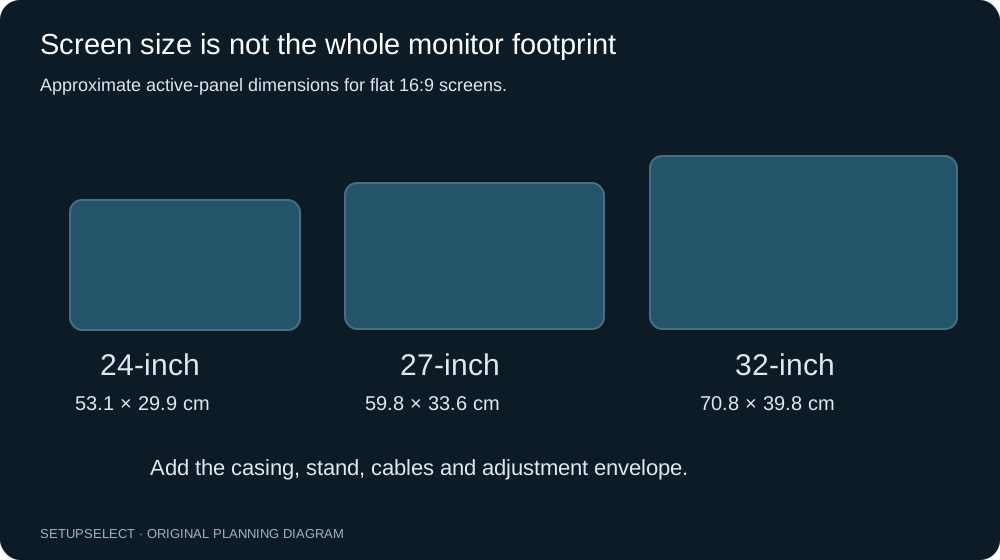
For a 16:9 display, calculated active dimensions are about 53.1 × 29.9cm at 24 inches, 59.8 × 33.6cm at 27 inches, and 70.8 × 39.8cm at 32 inches. These figures describe the visible panel area, not the finished housing or stand.
Bezels, feet, speakers and rear connections add product-specific dimensions.
The jump from 27 to 32 inches adds approximately 11cm of active width and 6cm of active height. That sounds modest until a display sits beneath a shelf or beside an open laptop.
Measure the whole housing at the intended screen height and include its movement if it tilts, rotates or rises on an arm.
| Size, 16:9 | Calculated active width | Calculated active height | Main fit question |
|---|---|---|---|
| 24 inches | 53.1cm | 29.9cm | Does the resolution provide enough workspace? |
| 27 inches | 59.8cm | 33.6cm | Do the stand and input devices fit together? |
| 32 inches | 70.8cm | 39.8cm | Can the room accommodate the larger view and support? |
Screen size and resolution are different choices
Resolution describes the number of pixels, while diagonal size describes the physical panel. A 24-inch and a 32-inch screen can both have 1920 × 1080 pixels, but those pixels occupy different physical areas.
The larger screen does not automatically show more spreadsheet columns or application windows at the same interface scaling.
For illustrative combinations, 24-inch Full HD is about 92 pixels per inch, 27-inch QHD about 109, and 32-inch 4K about 138. These values come from pixel geometry.
They are not quality scores: text rendering, panel characteristics, software and individual vision also matter.
Higher density usually creates smaller interface elements at unchanged scaling, so a practical comparison must include the operating-system settings.
Use the monitor PPI calculator to compare a particular size and resolution. Then check the effective workspace at the scaling level you would actually use.
A high-resolution screen is not useful if you must lean forwards to read it or if essential software renders poorly at your preferred settings.
When a 24-inch monitor makes sense
A 24-inch screen is worth considering for a compact desk, a laptop-first setup or a secondary display used for messaging and reference material. Its smaller housing can leave more room for documents or an open laptop.
It can also be easier to place where a door, cupboard or shelf limits the available width.
Imagine a 100cm-wide desk holding a 54cm-wide monitor housing and a 33cm laptop, with a 4cm gap. The row totals 91cm, leaving 9cm before considering edge allowances. This is a hypothetical layout, not a promise that every 24-inch model and laptop will fit.
The monitor stand and keyboard still need to coexist in depth.
The limitation is often workspace rather than physical size. If your work involves several dense applications, a basic Full HD configuration may require more window switching. Decide whether that is an actual problem in your workflow.
Do not buy a larger screen solely to avoid switching between two applications you rarely need visible together.
When a 27-inch monitor makes sense
A 27-inch display gives a larger physical view without the full width and height of a 32-inch screen. At QHD resolution, it offers more pixels than Full HD while maintaining a moderate density.
That combination is common, but the label alone does not guarantee readable text or compatibility with your computer and dock.
For coding, consider an editor and a documentation window side by side. For office work, test a spreadsheet and a communication panel.
Record whether the applications remain useful at their divided widths rather than merely fitting two rectangles onto the screen. Browser zoom and application settings may change the result more than a small diagonal difference.
A 27-inch screen can still have a bulky base. Compare stand depth, height adjustment and cable access, not just housing width.
If you plan to add a second monitor later, use the dual 27-inch desk guide to test that future arrangement before choosing the desk.
When a 32-inch monitor makes sense
A 32-inch display is useful when you want a larger physical canvas for complex documents, timelines or multiple windows and can accommodate its size. A 4K model can combine detail with substantial workspace, but the usable amount depends on scaling.
A lower-resolution 32-inch display creates a different trade-off: larger physical pixels without necessarily adding information.
Try a full-size cardboard outline where the monitor would sit. Include its lower and upper edges, not just width. Check whether you can comfortably use the applications that occupy the corners, and whether a shelf or window handle limits adjustment.
A deep desk can help positioning, but does not remove the need to assess the complete workstation.
The comparison between 27-inch QHD and 32-inch 4K deserves its own calculation. At some scaling settings they can provide similar effective workspace, with different physical text size and density.
Buying 4K therefore does not automatically mean four times as much useful working area as your current setup.
Evaluate your actual applications
Build a short task list before visiting a shop or borrowing a screen. Open a representative spreadsheet, the documents you read, your code editor if relevant, and the communication tools you keep visible.
Use normal content rather than a promotional wallpaper that hides text readability and window-management issues.
For each arrangement, check the smallest text you need to read routinely, the number of columns or lines visible, and how much resizing is required. Test menus and dialog boxes as well as the main document.
A setup that works in one browser page may expose problems in an older desktop application.
If you cannot try the exact screen, simulate window sizes on your current device and use physical outlines to assess the room.
This will not reproduce pixel density or panel quality, but it can identify whether your main need is more resolution, a larger physical image, or simply better window organisation.
Desk depth and viewing position
Desk depth is not the same as eye-to-screen distance. Your eyes are normally in front of the desktop edge, and the display surface may be forward or behind the stand's centre. Measure from the working position you actually use.
Do not move the chair to an awkward place simply to satisfy a generic distance recommendation.
The stand, keyboard, mouse and cable route also consume depth. A 32-inch screen with a compact support may be easier to arrange than a smaller display with a deep base. Conversely, an arm that needs rear joint clearance can push a screen forwards.
Use the desk-depth guide and the monitor-size tool together.
Allow for glare and lighting. A large display placed directly in front of a bright window may be less usable than a smaller one positioned more thoughtfully.
Check the screen in the conditions and at the times when you work, rather than relying solely on a room photograph taken at night.
Connections, docks and laptop limitations
Check the exact output capabilities of the computer, dock and cable path. A connector shape does not by itself establish the resolution and refresh rate available.
USB-C ports vary in supported display functions, and a dock may share bandwidth between several devices or displays. Consult the specifications for the complete chain.
If you use a work laptop, ask whether its configuration or management policy restricts external displays or software changes. A monitor with an integrated hub may simplify cables, but verify charging power and port behaviour for the actual laptop.
Do not treat a headline power-delivery figure as a guarantee that every connected device will receive its preferred power simultaneously.
Keep the connection question separate from screen size. A compatible 27-inch display is more useful than an impressive 32-inch model that runs at an unsuitable output mode through your existing dock.
Include replacement cables or a verified dock in the overall budget where necessary.
Stand adjustment and mounting
Look for the range of height, tilt and rotation that the intended setup requires. A screen with limited adjustment may need a different support, adding cost and new compatibility checks.
The appropriate position depends on the task and user, so do not assume the top edge must match a single universal measurement.
For an arm, record the monitor's VESA pattern and weight without the stand. Check the arm's minimum as well as maximum supported weight, and any screen-size or curvature restrictions. Confirm the desktop structure and clamp range.
The monitor-arm guide explains why matching one headline number is not enough.
If using the supplied stand, measure its footprint and the access needed for controls and cables. A stand that rotates broadly may move into a laptop or microphone. Place all accessories on the plan before deciding that the display alone fits.
One large screen or two smaller screens
One large screen reduces the central bezel interruption and may simplify mounting. Two screens allow distinct orientations and a clear separation between tasks, but require more width, supports and connections.
Neither arrangement automatically improves concentration or output; test the workflow rather than relying on a general productivity claim.
If one screen will contain your primary task and the other occasional reference material, place the primary screen first. If both are used continuously, test the join and the head movement required to switch attention.
Consider whether the second display could instead be the laptop you already own.
Do not compare purchase prices alone. Include mounting hardware, cables, dock capability, power outlets and room space. Reusing a functional display may be sensible even if a perfectly matched pair would look neater.
Cosmetic symmetry is a preference, not a compatibility requirement.
Questions before choosing
Is a 32-inch monitor too big for office work? Not inherently. It depends on resolution, interface scaling, placement and the work being done.
Use a full-size outline and a real application trial to assess the arrangement rather than relying on a fixed diagonal limit.
Is 27-inch Full HD always a mistake? No universal rule can decide that. Some people prefer larger interface elements and have simple display needs. Others will value higher density and workspace.
Compare the actual task, readable settings and budget instead of treating resolution labels as a hierarchy that everyone must climb.
Should a secondary screen match the main one? Matching can simplify visual consistency, but physical fit, connections and the secondary task may justify a different size or orientation.
Check how windows and scaling behave across the pair before purchasing.
Use a representative screen task
Before changing size, save an example of your normal working arrangement: a spreadsheet beside notes, an editor beside documentation, or a video meeting beside the agenda.
The useful question is whether the larger display improves that arrangement at a readable text size.
If you can try a candidate in a shop or workplace, use similar applications and scaling rather than judging a bright demonstration video. Check the edges of the screen as well as its centre.
Then note the stand height and depth; the display on the demonstration arm may occupy much less desk space than the included stand.
Treat this trial as personal preference evidence, not a universal viewing-distance rule. A 32-inch monitor that suits one person's spreadsheet workflow may be unnecessary for someone who mostly uses a single document window.
A sensible final shortlist
- Choose the task and readable interface size first.
- Calculate physical panel dimensions, then replace them with exact housing measurements.
- Check stand footprint, desk depth and the whole room arrangement.
- Verify resolution and refresh support through the complete connection chain.
- Test application scaling and text rendering where possible.
- Confirm adjustment, mounting, warranty and returns for the exact model.
The dimensions and density examples in this article are calculated, not personally measured product tests. For a broader workstation assessment framework, refer to the HSE checklist.
Use manufacturer specifications to verify real products, and keep the monitor-size calculator as a planning aid rather than a universal prescription.
Continue researching