Buying guide
Stacked vs side-by-side monitors: which layout works for you?
Compare stacked and side-by-side monitors for everyday work, desk space and mounting. Try the windows you use before choosing a layout.
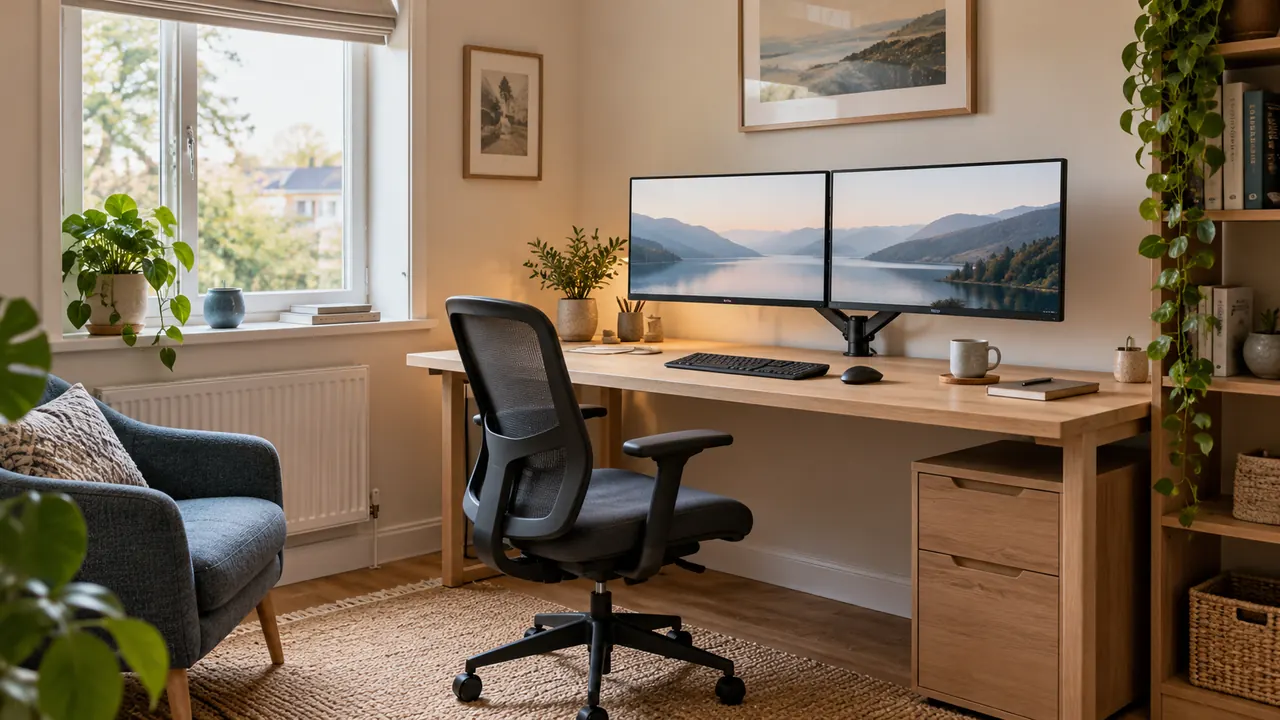
Side-by-side monitors are usually the easier starting point when you work across both screens throughout the day. Stacking can save horizontal space, but the upper screen is best treated as a place for occasional checks rather than a second main workspace.
The right arrangement depends on where you spend your attention, not simply how neatly the screens fit in a photograph.
Before buying a tall arm, decide what each display will do. A document beside a spreadsheet creates a different viewing pattern from a main work screen with a calendar above it.
This guide helps you choose between those arrangements, check the mounting height and try the layout with the equipment you already have.
Use the dual monitor desk calculator to check the side-by-side option. It does not calculate a vertical stack; use the height checks below for that layout.
If your main question is the width of the furniture, the separate guide to a desk for two 27-inch monitors covers that calculation.
Start with the work, not the screen positions
Write down three tasks you regularly do and which windows you need open for each. Be specific: “copy figures from a PDF into a spreadsheet” tells you more than “admin”. Notice whether you read both windows continuously or merely check one occasionally.
For regular comparison, side-by-side screens let you keep the two windows at a similar height. For one main task with a background reference, placing the main monitor directly in front of you is a useful starting point.
The Canadian Centre for Occupational Health and Safety recommends that arrangement when one display gets most of the use; for roughly equal use, it suggests adjacent screens angled towards the user.
Its guidance also emphasises adjusting the setup to the person. CCOHS monitor positioning guidance.
That does not mean a stack can never work. It means that freeing desk width should not quietly move your most demanding reading to a position you find awkward. Your actual working pattern gets the deciding vote.
| Regular task | Arrangement to try first | Reason to reconsider |
|---|---|---|
| Editing while comparing a source | Side by side | The source is only checked occasionally |
| Main application plus calendar or status panel | Main screen with a secondary above | You start reading long messages upstairs |
| Two long documents | Landscape plus portrait beside it | The portrait screen becomes too tall to read comfortably |
| Calls alongside detailed work | Camera and main screen centred | You keep looking away from the camera to read |
| Small desk with little sideways space | One screen, virtual desktops, or a modest stack | The second screen adds little practical value |
What stacking changes
A stack exchanges horizontal spread for vertical spread. It can leave space beside the monitor for a speaker, notebook or the return of an L-shaped desk. It may also avoid a screen projecting into a nearby walkway.
Those are useful improvements when width is genuinely scarce.
The price is a higher secondary display. Even when the lower screen is well positioned, the centre of the upper one can be a long way above your normal line of sight.
Tilting that panel towards you can improve the viewing angle of the image, but it does not move the content downwards. These are different adjustments.
Also distinguish the screen footprint from the support footprint. A tall pole with a substantial base might occupy more desktop depth than expected. A clamp can free the surface, but only if the desk and mount are compatible.
Neither option automatically makes the desk suitable for the combined load.

A simple height calculation before buying an arm
Use the outside height of the monitor housing, without its original stand. The active display height is not quite the same measurement. Then add the gap you expect between the housings and the distance from the desk to the lower housing.
Here is an illustrative pair of monitors with housings 36cm high. The bottom edge of the lower screen sits 10cm above the desktop, and the gap between screens is 2cm. The lower screen occupies heights from 10cm to 46cm.
The upper screen occupies 48cm to 84cm, with its centre at 66cm above the desk.
Suppose your eyes are 46cm above the desktop when you sit down. The centre of the top screen is 20cm higher than that. If it's 65cm away horizontally, you’ll look up by about 17 degrees to see the centre and farther to see the top.
Try looking at those positions from your own chair to get a feel for how often you’d be looking up.
The same user might be happy glancing at a timer there and dislike reading a report there. Moving the lower screen down would lower the stack, but could make the main display awkward.
Moving the whole assembly back might help the viewing angle while making small text harder to read. Check the trade-off using the windows you actually use.
Keep the main viewing position comfortable
Set the chair and desk for your ordinary working position before adjusting the screens. Otherwise, it is easy to raise the chair just to meet a monitor, then discover that the keyboard or your feet no longer sit comfortably.
The HSE's display screen equipment leaflet suggests approximately horizontal forearms and eyes around the height of the top of the screen.
Treat this as a starting point for the main display, with personal adjustments where needed, rather than an instruction to put the top of a two-screen stack at eye level. HSE working with display screen equipment.
Check text size before changing posture. If you lean forward to read a window, enlarge its text or adjust the application's zoom and see whether that solves the problem. A smaller secondary screen need not use the same scaling setting as the main one.
People using different glasses may prefer different screen heights. If the arrangement causes discomfort or your employer provides a workstation assessment, use that support rather than trying to force yourself into a layout.
The laptop desk setup guide also covers separating the display from the keyboard when a laptop joins the arrangement.
Equal use and occasional use are different cases
Priya spends much of her morning checking a draft against a source document. She looks back and forth every few sentences. If one screen sits above the other, that also means looking up and down every few sentences.
She tries both screens side by side first, with their join near the middle and both angled towards her.
By the afternoon, she mostly writes on one screen and checks a calendar a few times. She can move the writing window to the more central screen or adjust her chair and keyboard together to face it.
A layout does not need one fixed centre for every task, provided changing position is straightforward.
Now consider Dan, who works in one main application and uses the second display for a timer and a small status panel. A stack could suit his narrow desk because those items need only brief glances.
However, if chat notifications repeatedly pull him into long conversations on the upper screen, the supposed occasional display has become a main one. Moving chat down or changing the arrangement would be more sensible than defending the original plan.
These examples are planning scenarios, not observed tests. Use them to notice your own pattern: how often you look away, how long you stay there and whether the arrangement makes you change posture.
Check the mount's reach as well as its load rating
A mount can support the weight of two monitors and still fail to place them where you want them. You need enough vertical adjustment, the correct mounting pattern, room for the joints and clearance behind the desk.
The monitor's mounting holes may also sit above or below the centre of its housing.
For a stacked arrangement, compare the required distance between mounting points with the arm's stated adjustment range. Do not assume that a product labelled “dual monitor arm” supports stacking.
Some designs are intended to spread sideways; others have a tall pole and limited depth adjustment.
Record each screen's weight without its stand and check each arm's permitted range, including any minimum weight for a spring mechanism. Look at the desk's thickness and underside, too. Drawers, rails and a hollow desktop can complicate a clamp installation.
Follow the desk and mount instructions for the actual combination.
Use the monitor arm compatibility checker and monitor arm compatibility guide for that hardware check.
Avoid buying an arm solely because its promotional photograph resembles your preferred arrangement.
A portrait screen is a useful third option
The choice is not limited to two landscape screens beside each other or one above the other. A portrait secondary display can suit long documents, reference material or a narrow messaging window.
It reduces that screen's horizontal span, although it increases its height.
For example, an illustrative housing measuring 60cm by 36cm becomes 36cm wide and 60cm high when rotated. Beside a landscape screen, it saves 24cm of horizontal span before accounting for gaps and angles.
The extra height still needs a comfortable position, and the mount must allow rotation with enough clearance.
Do not try to make every edge align. Matching the top edges, centres or lower edges can produce very different places for the text you read most. Put the important working area where it is useful, then accept that the screens may look slightly uneven.
Some applications make better use of a portrait panel than others. Try a narrow window on your existing display first. If a spreadsheet repeatedly needs sideways scrolling, portrait orientation may solve the furniture problem while creating a software problem.
Camera, lighting and sound can decide the layout
A webcam perched on the top of a stack may be far above the position you would choose for a call. A camera between the screens could be more useful, but check that there is a proper place to attach it and that its cable can reach.
Do not wedge equipment between unsupported housings.
If you often present while reading notes, place the notes near the camera rather than at the opposite edge of the second display. This can matter more than making the screens symmetrical.
Try a call preview and check the framing from your normal sitting position.
A high screen may also block a lamp or reflect a ceiling light. A side screen might catch a bright window that the central display avoids. Look at the proposed position at the time of day you normally work.
The small-room video call guide explores that wider setup.
Leave room for the objects you reach for. Saving 30cm beside the screens is not much help if a tall stand places its base where your notebook goes. Include speakers, the dock and charging leads in the plan before deciding that stacking has solved the desk.
Try the layout without improvising a tall support
You can test how you use two displays without putting a monitor on a pile of books or an unstable shelf. Start with the monitors on their proper stands and use window placement to imitate a main-and-secondary workflow.
Keep the main task centred and restrict the other screen to the items you intend to glance at.
For the height question, mark the proposed upper screen outline on the wall with removable paper, if suitable for the surface. Sit normally and look at where its centre would fall.
This does not reproduce image quality or prolonged use, but it exposes a surprisingly high proposal before you order hardware.
If you already have an approved adjustable mount, make changes within its instructions and adjustment range. Check cable slack across the full movement. A lead that reaches in the lowest position may pull on a socket when the upper monitor rises.
Spend a normal work session noticing specific problems rather than trying to rate the setup overall. Record whether you keep moving your chin, turning your chair, losing the pointer or dragging windows between screens.
Those observations point towards useful changes.
What if the pointer and windows feel awkward?
Arrange the display rectangles in your operating system to match their physical positions. With a stack, the pointer should travel upwards to the upper screen; with a portrait display, the virtual join should roughly match where the screens meet.
A mismatch makes every transition feel less predictable.
Choose the primary display deliberately. Put the taskbar, frequently used controls and default application windows where you want to work.
Different resolutions and scaling settings can make windows change apparent size when moved; that is worth checking before blaming the physical arrangement.
Give each screen a job for a few days, then review it. If the upper display remains empty or collects distractions, one monitor with virtual desktops may serve you better.
If the second screen consistently holds important material, give it a position suited to that level of use.
Is stacking better for a small desk?
It can reduce width, but the desk still needs enough depth for a comfortable viewing distance and enough suitable structure for the support. The total height may conflict with a shelf, sloping ceiling or window.
Measure all three directions rather than using desk width as the only test.
Should both screens be the same size?
No. A larger main screen and smaller secondary can work well when their roles differ. Matching models can simplify alignment, but equal size does not make a high secondary display comfortable.
Choose the job of each screen first, then compare the physical dimensions and mounting requirements.
Which arrangement should I choose first?
Try side by side for sustained work across two screens. Consider stacking when width is limited and the upper screen genuinely holds occasional information.
If neither feels useful, compare a portrait secondary or one ultrawide instead of dual monitors.
The best arrangement is the one that lets you work comfortably without continually negotiating where the next window belongs.
Keep exploring
Related home office guides
 What size desk do you need for two 27-inch monitors?Will two 27-inch monitors fit on a 120, 140 or 160 cm desk? Try the layout with stands, arms or an open laptop and see how much room is left.34-inch ultrawide vs two 27-inch monitors for workCompare usable pixels, window layouts, screen sharing and connections before choosing a 34-inch ultrawide or two 27-inch monitors.How to choose a monitor arm that fits your screen and deskCheck VESA, display weight, clamp range, desk construction and movement clearance before buying a monitor arm.